
Shared folder between Windows and Fedora in VirtualBox — complete guide
Once you have Fedora running in VirtualBox, the next thing you need is to be able to pass files between Windows and Fedora without complications. In IC2 this is essential: you write code in Fedora but you probably want to have it backed up in Windows too, or submit it through the university platform.
In this guide, we will set up a shared folder Windows and Fedora VirtualBox: a step-by-step setup that includes the Fedora 43 Guest Additions install and solutions to the most common errors. Fair warning from the start: installing Guest Additions on Fedora 43 is not as straightforward as on other versions. I had to fix several errors before getting it working, but everything is documented here so you don’t have to go through the same thing.
Table of Contents
What are Guest Additions?
Guest Additions are a set of tools that VirtualBox installs inside the virtual machine to improve its integration with the host system (in our case Windows). Without them you can’t have shared folders, the screen doesn’t resize automatically and the mouse doesn’t integrate well.
They’re essential and you only install them once.
Part 1 — Install Guest Additions in Fedora
Start your Fedora virtual machine if it isn’t already open. When you’re on the Fedora desktop, go to the VirtualBox menu bar (the bar at the top of the window) and click:
Devices → Insert Guest Additions CD Image
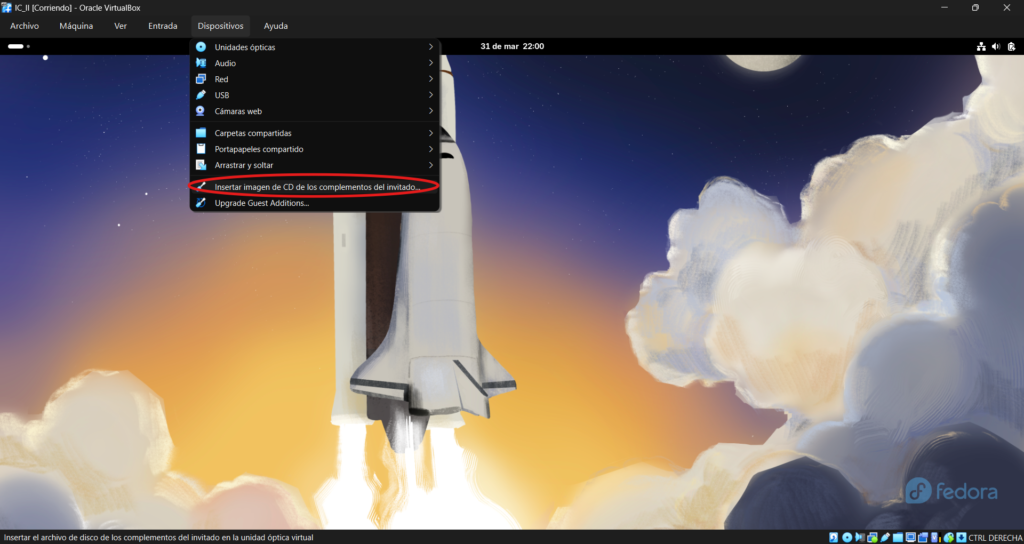
Fedora will detect the virtual CD and ask if you want to run it. Click Run. If no automatic message appears, open the Fedora file manager and you’ll see a mounted device called VBox_GAs_x.x.x. Click the 3 dots and select Open in Terminal.
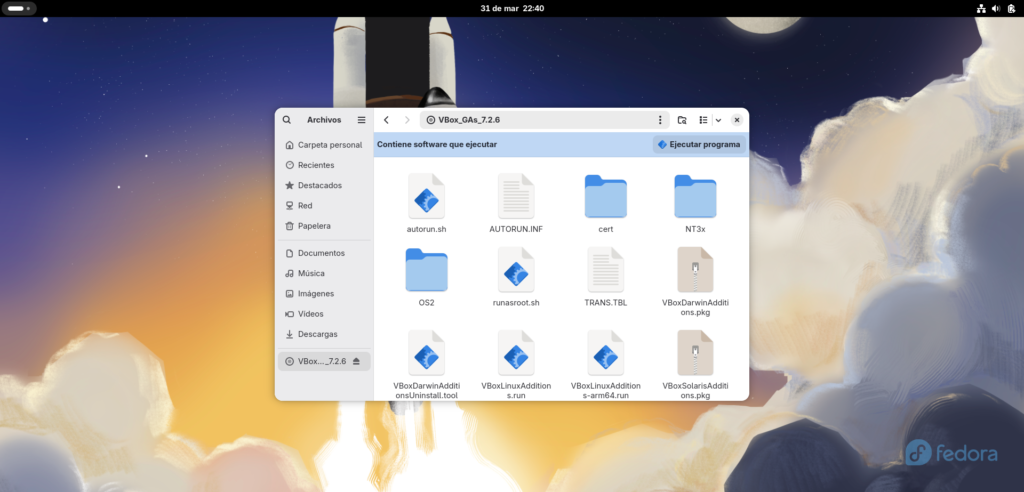
It will ask for your Fedora password. Type it. The installation will take a couple of minutes.
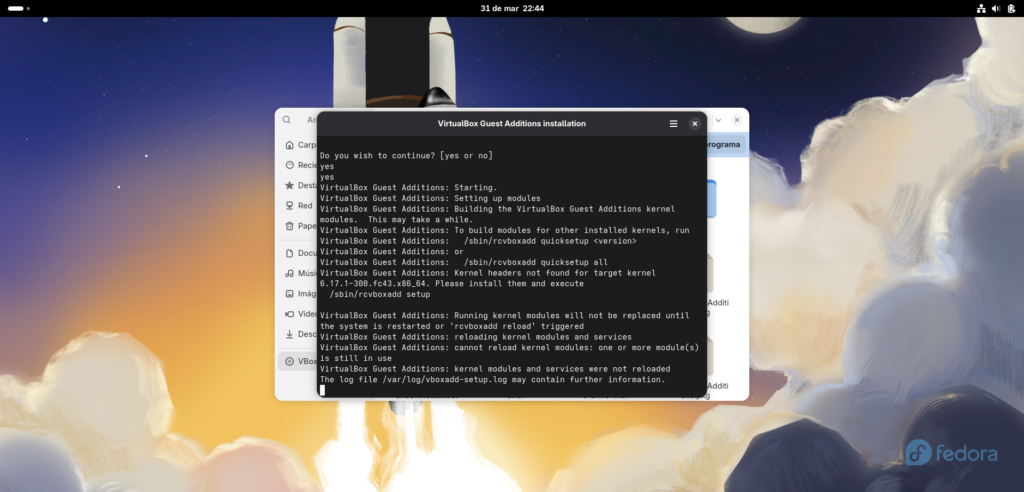
When it finishes you’ll see a message indicating the installation was successful. Restart the virtual machine:
sudo reboot
When it boots again you’ll see that the screen now resizes automatically to fit the window. That confirms Guest Additions are working.
If installation fails — the real process on Fedora 43
On Fedora 43 it’s very likely that the automatic installation will fail with a kernel modules error. This happens because Guest Additions need to compile kernel modules and for that they need tools that Fedora doesn’t include by default.
The solution is to install them manually. Open the Fedora terminal and follow these steps in order:
Step A — Clean the dnf cache
Before installing anything, clean the cache to avoid checksum errors:
sudo dnf clean all
Step B — Install the required dependencies
sudo dnf install -y kernel-devel gcc make perl
⚠️ This step can take a very long time, Fedora 43 mirrors are slow and time out constantly. DNF retries automatically. In my case it took over an hour. Don’t cancel even if you see red errors — if the process is still moving, it’s working.
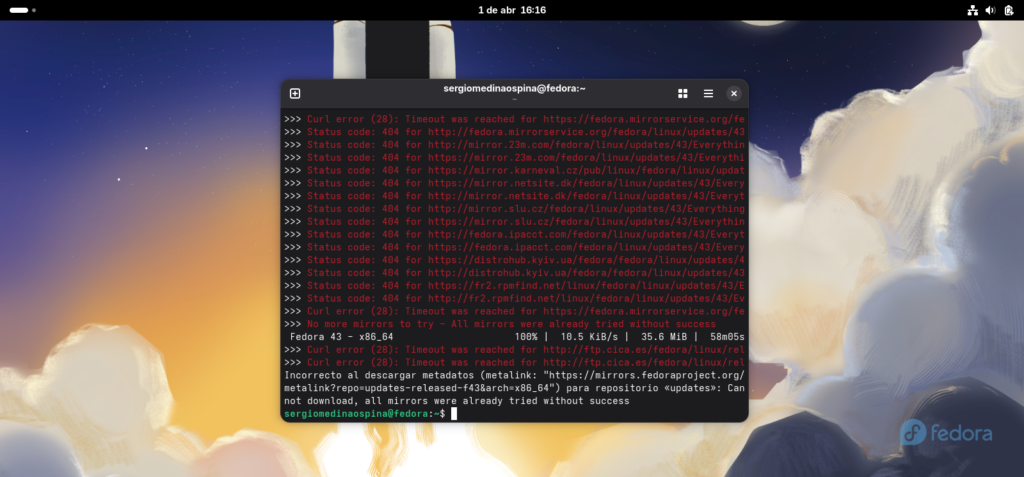
If the command above fails because kernel-devel doesn’t match your exact kernel version, use this alternative:
sudo dnf install -y kernel-devel --allowerasing
Step C — Run Guest Additions with sudo
sudo /run/media/yourusername/VBox_GAs_*/VBoxLinuxAdditions.run
Replace yourusername with your Fedora username.
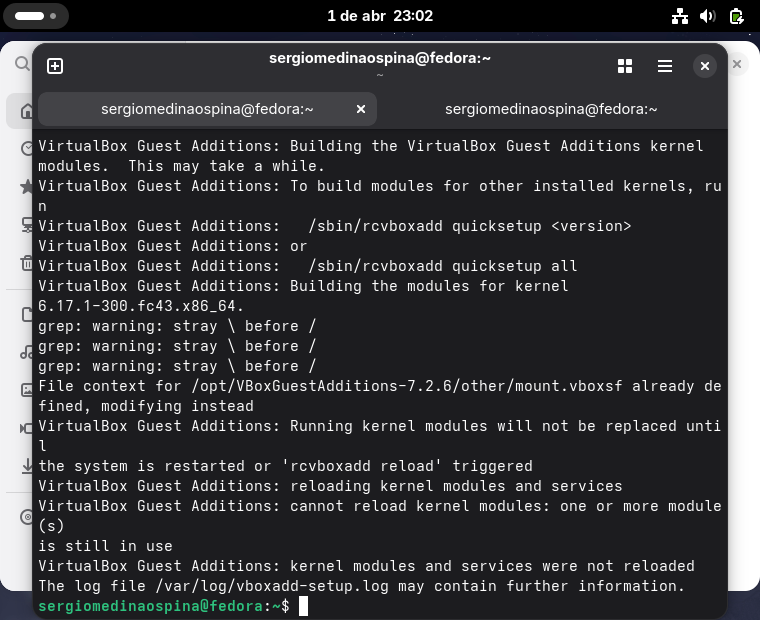
Step D — If modules still won’t load
If after rebooting the screen doesn’t resize, run:
sudo /sbin/rcvboxadd quicksetup all
And reboot again:
sudo reboot
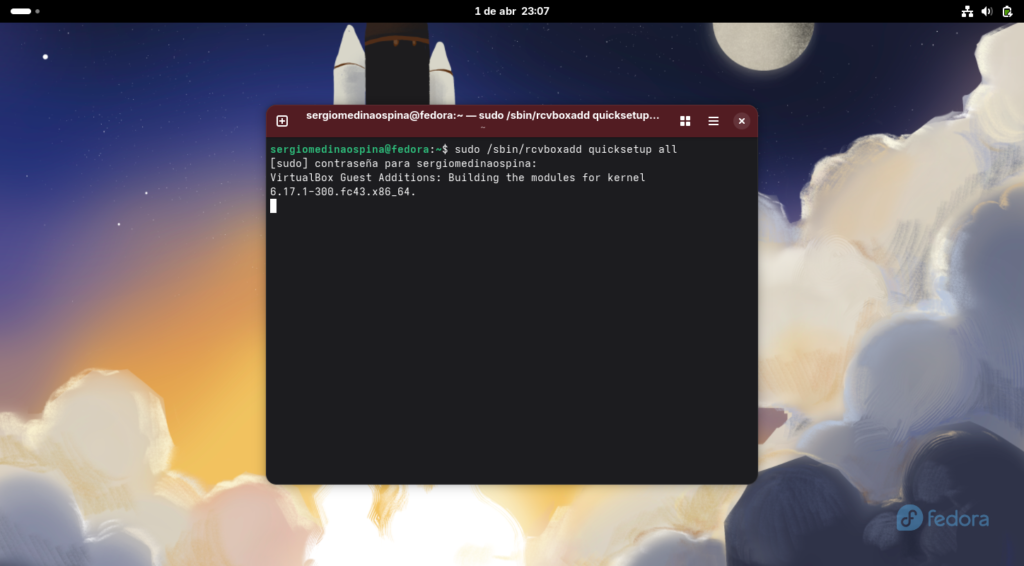
When Fedora boots again the screen will adapt automatically to the VirtualBox window size. That confirms Guest Additions are working correctly.
Part 2 — Create the shared folder in Windows
Before configuring anything in VirtualBox you need to create the folder in Windows. Open File Explorer and create a folder somewhere logical:
C:\Users\YourName\Shared_IC2
Give it a name without spaces or special characters — that avoids problems later in Linux.
Part 3 — Configure the shared folder in VirtualBox
With the virtual machine completely shut down, go to VirtualBox, select your VM and click Settings. Go to Shared Folders and click the folder icon with the + symbol.
Fill in the dialog like this:
Folder path:   select your Windows folder
Folder name:   Shared_IC2
Auto-mount:    ✅ enabled
Make permanent: ✅ enabled — essential for it to persist every time you boot
Click OK twice and start the VM.
Part 4 — Access the folder from Fedora
The shared folder should appear automatically in the file manager. If it doesn’t, check it from the terminal:
ls /media/sf_Shared_IC2
VirtualBox mounts shared folders in /media/ with the prefix sf_ followed by the name you configured.
The permissions error — almost certain to happen
When you try to open the folder you’ll probably see a permissions error. This is normal — VirtualBox shared folders belong to the vboxsf group and your user doesn’t belong to that group by default.
Solution:
sudo usermod -aG vboxsf yourusername
Replace yourusername with your username. Then restart:
sudo reboot
After the restart you’ll have full read and write access to the folder.
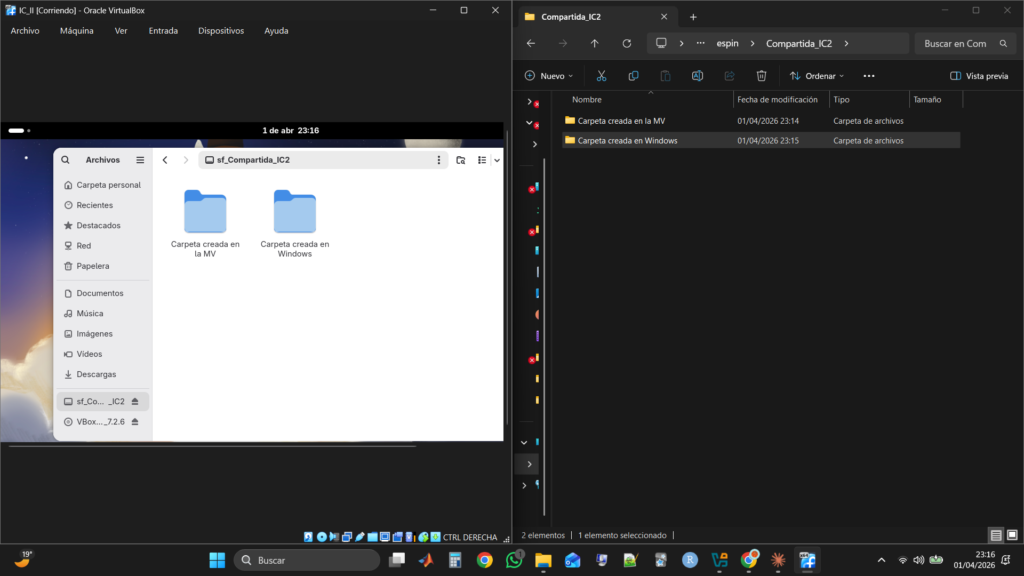
Final verification — check it works both ways
Create a file from Windows in the shared folder. Go to Fedora and check it appears:
ls /media/sf_Shared_IC2
Now the other way — create a file from Fedora:
touch /media/sf_Shared_IC2/test_from_fedora.txt
Go to Windows and check it appears in your folder. If it works both ways, the setup is complete.
Commands summary — copy this and keep it handy
# 1. Clean cache
sudo dnf clean all

# 2. Install dependencies
sudo dnf install -y kernel-devel gcc make perl

# 3. If kernel-devel fails, alternative
sudo dnf install -y kernel-devel --allowerasing

# 4. Run Guest Additions (replace yourusername)
sudo /run/media/yourusername/VBox_GAs_*/VBoxLinuxAdditions.run

# 5. If modules don't load
sudo /sbin/rcvboxadd quicksetup all

# 6. Reboot
sudo reboot

# 7. Add user to vboxsf group (replace yourusername)
sudo usermod -aG vboxsf yourusername

# 8. Reboot again
sudo reboot
Tip for IC2 — organise your shared folder from day one
📁 Shared_IC2
  📁 Labs
    📁 Lab1_introduction
    📁 Lab2_pointers
  📁 Notes
  📁 Submissions
This way everything is accessible from both Windows and Fedora, automatically backed up on your Windows disk, and organised so you can find any lab in seconds.
Common problems
Folder doesn’t appear in Fedora: Check that both Auto-mount and Make permanent are enabled in the configuration. If not, shut down the VM, edit the folder and enable them.
Permission denied error: Run sudo usermod -aG vboxsf yourusername and reboot.
Folder appears but is empty: Check that the Windows path is correct and the folder exists. Sometimes VirtualBox saves an old path if you moved the folder.
Fedora mirrors very slow or timing out: This is a known issue with Fedora 43. Run sudo dnf clean all and try again. Be patient — it can take over an hour on fresh installs.
Guest Additions fail with kernel error: Use sudo dnf install -y kernel-devel --allowerasing instead of the standard command. If it still fails, run sudo /sbin/rcvboxadd quicksetup all after installing.
What’s next?
With the shared folder working you have a complete working environment between Windows and Fedora. The next step is learning the essential Linux terminal commands you’ll use constantly in IC2.
Keep goingAll Tools articlesDid this article help you? Here is how you can support SergioLearns →


One Comment