
C on Fedora — install gedit, compile with gcc and understand its errors (starting with the “command not found” of my first day in IC2)
Installing gedit in Fedora and compiling with gcc was the first thing I had to sort out in IC2. When they told us we’d program in C using gedit, the first thing I did was open Fedora’s terminal and type gedit. The answer was instant: command not found. Nobody had warned me it had to be installed.
In this guide I explain how to install gedit in Fedora, how to open it with & so it doesn’t block the terminal, and how to compile and run your first C program with gcc. But I don’t stop there: we also look at what gcc does inside (with the real figures of a compilation), how to read its error messages, how to compile a program made of several files and which options you should always use. If you don’t have Fedora yet, first follow the Fedora on VirtualBox and shared folder guides.
Table of Contents
What you need before you start
- Fedora running (in VirtualBox or installed for real) and a terminal open.
- Internet in Fedora and your user’s password (for
sudo). - Knowing your way around the terminal a little (
cd,ls,mkdir). If not, have a look at the basic Linux commands first.
Every terminal session in this guide is real: I ran them once on a Linux with gcc 14 as a normal user called sergio. Fedora 44 ships gcc 16, which gives the same errors and warnings in the same format. The only thing I couldn’t run is gedit, because it’s a graphical window: for that you have my Fedora screenshots.
What is gcc and why do you need it?
gcc (GNU Compiler Collection) is Linux’s C compiler: it translates your .c into a program the processor can run. Fedora Workstation doesn’t always ship it. Check:
gcc --version
If the first line looks like gcc (GCC) 16.2.1 … (Fedora 44’s version in October 2026), you have it. If you get command not found, install it:
sudo dnf install -y gcc
If you did the shared folder guide through the CD road, gcc is already installed: step B asked for it.
Step 1 — Install gedit in Fedora
For a few versions now, the text editor that comes with Fedora Workstation is GNOME’s Text Editor, not gedit. That’s why gedit doesn’t exist until you install it. Open the terminal and run:
sudo dnf install -y gedit

dnf is Fedora’s package manager: the equivalent of an app store, but from the terminal. It looks for gedit in Fedora’s repositories (on Fedora 44, version 50), downloads it with everything it needs and installs it. The -y answers “yes” to the confirmation question. It’ll take a few minutes depending on your connection. When it finishes, check it’s there:
gedit --version
In Fedora’s terminal, if you type a command that doesn’t exist, it sometimes offers to install the package that provides it (Install package 'gedit' to provide command 'gedit'? [N/y]). Answering y does the same as the dnf install.
Step 2 — Open gedit without blocking the terminal
Here’s the trick nobody tells you. If you open gedit by typing just:
gedit
the terminal gets blocked: you can’t type more commands while gedit is open. You’d have to open another terminal to compile, or close gedit every time. (You can also “free” it with Ctrl + Z followed by bg, but that’s the long way round.)

The fix is the & operator, which runs the program in the background:
gedit &

With the & at the end, gedit opens and the terminal stays free. You’ll see something like [1] 4321: the [1] is the job number in that terminal and the other number is the PID (Process ID), the identifier of the gedit process across the whole system. Your PID will be different.
What is a background process?
In Linux, every program you run is a process. Processes normally run in the foreground: they hold the terminal until they finish. With & you send them to the background: they keep running, but the terminal is free.
gedit hello.c &    # opens gedit with a specific file, in the background
jobs               # lists this terminal's background jobs
fg                 # brings the last one to the foreground (Ctrl + Z stops it again)
In IC2 this is really handy: gedit with your code in one window and the terminal free next to it to compile and run without closing anything. (You’ll study processes in depth later in processes in C.)
Closing the terminal with gedit open in the background and losing what you hadn’t saved. The gedit process depends on that terminal: save with Ctrl + S before closing it.
Step 3 — Your first C file
Create a folder for your C labs and go into it:
mkdir -p ~/IC2/Labs/P1_introduction
cd ~/IC2/Labs/P1_introduction
The -p also creates the folders in between (IC2 and Labs) if they don’t exist, and ~ is your home folder. Now open gedit with your first file:
gedit hello.c &
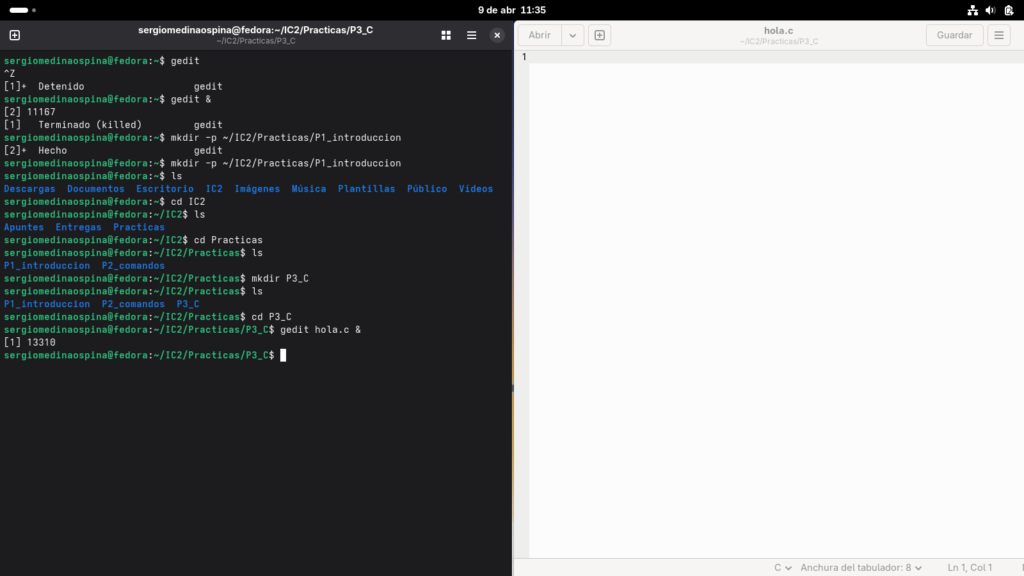
Type this code in gedit and save with Ctrl + S:
#include <stdio.h>

int main() {
    printf("Hello world\n");
    return 0;
}
It’s the simplest possible C program. Before compiling it, let’s understand what each line does.
Understanding every line
#include <stdio.h>: tells the preprocessor to paste here the contents ofstdio.h, the header file of the standard input/output library. Without this line gcc doesn’t know whatprintfis. It’s the closest thing to Python’simport.int main(): the main function. Every C program has amainfunction: it’s the entry point, the first thing the system runs. Theintsays it returns an integer to the system.printf("Hello world\n");: prints the text in the terminal. The\nis the newline: without it, the terminal’s next prompt would appear glued to the text.return 0;: returns0to the system, which means “everything went fine”. A value other than 0 signals an error.
Step 4 — The C compilation model
Before compiling, understand what happens inside. In Python you run the .py directly. In C, the code goes through three phases before becoming a program:
- Preprocessor. Handles the lines that start with
#: pastes in the.hcontents, replaces the#defines and strips the comments. Your#include <stdio.h>is expanded here. - Compiler. Translates the preprocessed C into machine code and produces an object file
.o: binary code, but not runnable yet, because it lacks the code forprintf. - Linker. Joins your
.owith the libraries it needs (the C library, whereprintflives) and produces the final executable.
When you type gcc hello.c -o hello, gcc does the three phases in one go. But you can see them separately. This is the real session:
$ gcc -E hello.c -o hello.i
$ wc -l hello.c hello.i
    6 hello.c
  819 hello.i
  825 total
$ tail -n 6 hello.i

# 3 "hello.c"
int main() {
    printf("Hello world\n");
    return 0;
}
$ gcc -c hello.c
$ ls
hello.c
hello.i
hello.o
$ gcc hello.o -o hello
$ ./hello
Hello world
The figures tell the story:
gcc -Estops after the preprocessor. Yourhello.chas 6 lines;hello.i, 819. The other 813 are the contents ofstdio.hand of the files it includes in turn: declarations ofprintf,scanf,FILE… (On your Fedora you’ll get a similar but different number: it depends on the C library version.)tail -n 6 hello.ishows the end of the file: yourmainis there as is, below everything that was pasted. The# 3 "hello.c"line is a marker so gcc knows which line of your file each thing comes from when it reports errors.gcc -ccompiles without linking:hello.oappears.gcc hello.o -o hellolinks and creates the executable, which works.
In practice you’ll always use the full command at once; this is for understanding where each type of error shows up, as we’ll see shortly.
Step 5 — Compile with gcc
Go back to the terminal (free thanks to the &) and compile. This is the full real session for steps 5 and 6:
$ ls -l
total 4
-rw-r--r-- 1 sergio sergio 78 Oct 26 19:57 hello.c
$ gcc hello.c -o hello
$ ls -l
total 20
-rwxr-xr-x 1 sergio sergio 15960 Oct 26 19:57 hello
-rw-r--r-- 1 sergio sergio    78 Oct 26 19:57 hello.c
$ ./hello
Hello world
$ hello
bash: hello: command not found
$ echo $?
127
What does each part of gcc hello.c -o hello mean?
| Part | What it is |
|---|---|
gcc | The C compiler |
hello.c | The source file you want to compile |
-o hello | The name of the executable it produces (output). Without -o, it’s called a.out |
If gcc prints nothing, the compilation went well: just like javac, silence is good news. Look at the two ls -l:
- Before, only
hello.cwas there, with-rw-r--r--permissions: it can be read and written, but not executed. - Afterwards
helloappears, with-rwxr-xr-x: that x is the execute permission gcc gives the executable. It weighs 15960 bytes, although your code is only 78: the rest is the structure of a Linux executable and the start-up code the linker adds.
The dates and the user (sergio) will be yours.
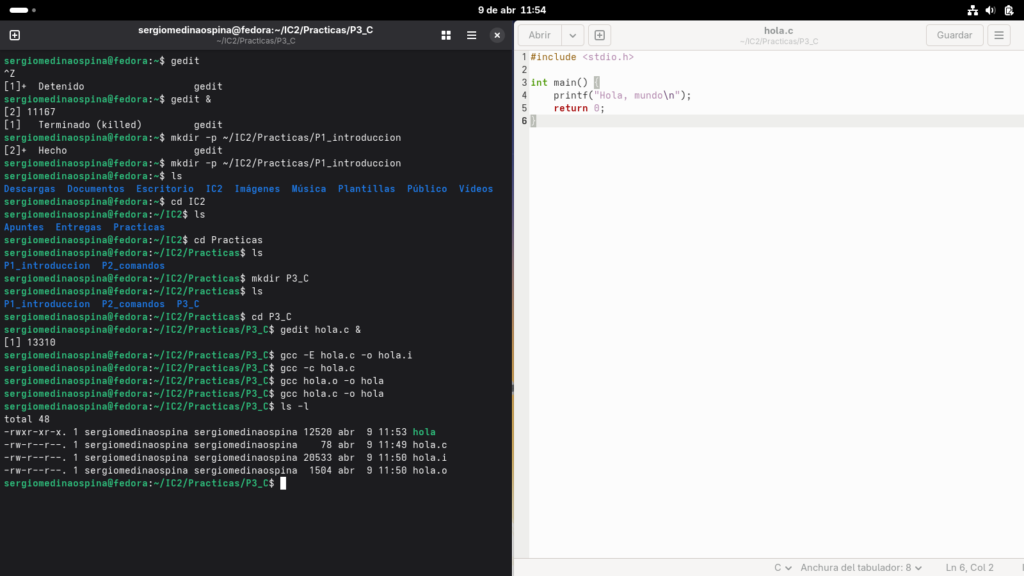
Step 6 — Run the program
In the session above, ./hello prints Hello world. The ./ is mandatory: it tells the terminal the executable is in the current folder (.). Without it, the terminal looks for the program in the system folders (the PATH ones, like /usr/bin), doesn’t find it and answers bash: hello: command not found. And echo $?, which shows the exit code of the last command, gives 127: the code bash uses for “I can’t find that command”.
The complete IC2 workflow
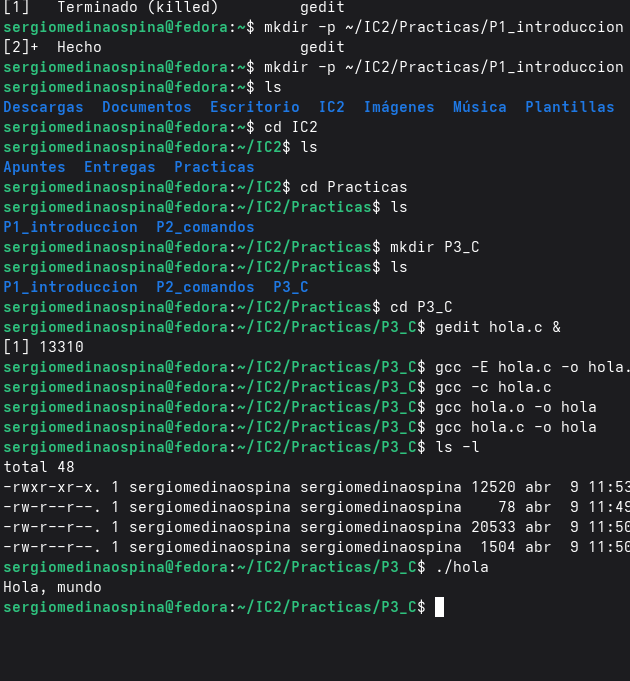
This is the cycle you’ll repeat thousands of times in IC2:
cd ~/IC2/Labs/P1_introduction    # 1. go to the lab folder
gedit program.c &                # 2. open the editor in the background
gcc -Wall program.c -o program   # 3. write, save (Ctrl + S) and compile
./program                        # 4. run it and look at the result
If gcc reports errors or the result isn’t what you expect: back to gedit, fix, save and repeat from 3. With the terminal’s ↑ arrow you get previous commands back without retyping them.
Type gcc -Wall and not just gcc. The -Wall option turns on the most useful warnings, and in the options section you’ll see a program that compiles “fine” and gives a wrong result that only -Wall gives away.
Understanding gcc error messages
All gcc messages have the same shape: file:line:column: type: description. The type can be error (no executable is produced) or warning (it is produced, but something smells). Below, gcc copies the offending line and marks the exact spot with ^. Each error comes from a different phase:
Knowing the phase tells you where to look. Here are the errors you’ll see most when starting out, all from a real run.
Common mistakes when starting
Mistake 1 — Forgetting the &
gedit hello.c      # terminal blocked: you can't compile
gedit hello.c &    # correct: terminal free
There’s no message: the terminal simply won’t let you type. Close gedit (or press Ctrl + Z and type bg) and open it again with &.
Mistake 2 — Running without ./
You saw it in step 6: hello on its own gives bash: hello: command not found (code 127). It’s ./hello.
Mistake 3 — Forgetting return 0
The previous version of this guide said that forgetting return 0 in main gives a warning. It isn’t true, and I checked it while updating it. Since the C99 standard, if main reaches its end without return, it returns 0 automatically:
$ gcc -Wall no_return.c -o no_return
$ ./no_return
Hello world
$ echo $?
0
Not a single warning, even though I compiled with -Wall, and the exit code is 0. Where return does matter is in every other function that returns something. Look at this twice.c:
int twice(int x) {
    int r = x * 2;
}
It computes the double, stores it in r… and forgets to return it:
$ gcc -Wall -c twice.c
twice.c: In function 'twice':
twice.c:4:9: warning: unused variable 'r' [-Wunused-variable]
    4 |     int r = x * 2;
      |         ^
twice.c:5:1: warning: control reaches end of non-void function [-Wreturn-type]
    5 | }
      | ^
Two warnings: r is never used (unused variable), and the function reaches its end without returning anything although it promises an int (control reaches end of non-void function). Careful: it’s a warning, so gcc builds the program anyway, and whatever twice(4) returns is garbage: whatever was in the processor’s register at that moment. You might get 8 by chance and another number on another computer. The fix is writing return x * 2;.
Syntax error — missing semicolon
In C every statement ends with ;. It’s the most common syntax error at the start:
$ gcc -Wall no_semicolon.c -o no_semicolon
no_semicolon.c: In function 'main':
no_semicolon.c:4:28: error: expected ';' before 'return'
    4 |     printf("Hello world\n")
      |                            ^
      |                            ;
    5 |     return 0;
      |     ~~~~~~
Read the message calmly: no_semicolon.c:4:28 is line 4, column 28, just after the ) of printf. gcc even draws the missing ; under the ^. The funny thing is it says before ‘return’: gcc doesn’t notice the missing ; until it reaches the next word, which is on line 5. So when an error makes no sense on its line, look at the line before.
Using printf without #include <stdio.h>
$ gcc -Wall no_include.c -o no_include
no_include.c: In function 'main':
no_include.c:2:5: error: implicit declaration of function 'printf' [-Wimplicit-function-declaration]
    2 |     printf("Hello world\n");
      |     ^~~~~~
no_include.c:1:1: note: include '<stdio.h>' or provide a declaration of 'printf'
  +++ |+#include <stdio.h>
    1 | int main() {
no_include.c:2:5: warning: incompatible implicit declaration of built-in function 'printf' [-Wbuiltin-declaration-mismatch]
    2 |     printf("Hello world\n");
      |     ^~~~~~
no_include.c:2:5: note: include '<stdio.h>' or provide a declaration of 'printf'
Without the #include, the compiler reaches printf without knowing what it is (implicit declaration). In old gcc versions it was just a warning; since gcc 14 it’s an error and no program is built (Fedora 44 ships gcc 16, so it’ll happen to you just like here). The note gives you the literal fix: the +++ |+#include <stdio.h> line is gcc showing you what you’d have to add on line 1.
File not found
$ gcc helo.c -o hello
cc1: fatal error: helo.c: No such file or directory
compilation terminated.
No such file or directory: the file helo.c doesn’t exist. It hasn’t even started compiling (cc1 is the gcc program that does the real work). Check the name with ls and that you’re in the right folder with pwd.
Compiling multiple files
As soon as labs grow, code gets split: a .h with the declarations (which functions exist) and a .c with their code. For example:
void greet(const char *name);
That line is a promise: “there’s a function greet that takes a text and returns nothing”. The real code goes in welcome.c:
#include <stdio.h>
#include "welcome.h"

void greet(const char *name) {
    printf("Hello, %s. Welcome to IC2\n", name);
}
And the main program, which only includes the header and calls the function:
#include "welcome.h"

int main() {
    greet("Laura");
    greet("Pablo");
    return 0;
}
Notice that here the #include uses quotes ("welcome.h") and not < >: quotes mean “look in my folder first”; < >, “look in the system folders”. The real session:
$ ls
main.c
welcome.c
welcome.h
$ gcc main.c -o welcome
/usr/bin/ld: /tmp/cc8NcOWY.o: in function `main':
main.c:(.text+0x13): undefined reference to `greet'
/usr/bin/ld: main.c:(.text+0x22): undefined reference to `greet'
collect2: error: ld returned 1 exit status
$ gcc -Wall main.c welcome.c -o welcome
$ ./welcome
Hello, Laura. Welcome to IC2
Hello, Pablo. Welcome to IC2
The first attempt is the most typical linker error: undefined reference to 'greet'. main.c compiles fine, because welcome.h tells it greet exists; but at link time nobody has given gcc the code for greet, which is in welcome.c. (The /tmp/cc….o name is a gcc temporary file: yours will differ.) The fix is passing it every .c: gcc -Wall main.c welcome.c -o welcome. The .h files don’t go in the command: the preprocessor already pastes them in.
Useful gcc flags
Look at this program. It adds up three marks and says so if they reach 21:
#include <stdio.h>

int main() {
    int marks[3] = {7, 5, 8};
    int total = 0;
    int extra;
    for (int i = 0; i < 3; i++)
        total += marks[i];
    if (total = 21)
        printf("You reached 21\n");
    printf("Total: %d\n", total);
    return 0;
}
7 + 5 + 8 = 20, so it shouldn’t say anything. This is what happened:
$ gcc check.c -o check
$ ./check
You reached 21
Total: 21
$ gcc -Wall check.c -o check
check.c: In function 'main':
check.c:9:9: warning: suggest parentheses around assignment used as truth value [-Wparentheses]
    9 |     if (total = 21)
      |         ^~~~~
check.c:6:9: warning: unused variable 'extra' [-Wunused-variable]
    6 |     int extra;
      |         ^~~~~
Without options gcc doesn’t complain, and the program says you reached 21… and that the total is 21. The bug is in if (total = 21): with a single = it doesn’t compare, it assigns 21 to total, and since 21 isn’t 0, the condition is true. With -Wall, gcc flags it (suggest parentheses around assignment used as truth value: “if you really mean to assign, put it in parentheses so it’s visible”) and, on the way, warns that extra is never used. The fix is if (total == 21).
The options worth knowing from the start:
| Option | What it does | When? |
|---|---|---|
-o name | Name of the executable | Always |
-Wall | Turns on the most useful warnings | Always |
-Wextra | Even more warnings (unused parameters, odd comparisons…) | When you want to be strict |
-std=c11 | Uses the C11 standard | If your lecturer asks for it |
-g | Adds information for the debugger (gdb) | When you’re going to debug |
-lm | Links the maths library (sqrt, pow) | If you use math.h; it goes at the end of the command |
-E / -c | Stops after the preprocessor / after compiling | To understand the phases |
Quick summary
sudo dnf install -y gedit gcc   # install the editor and the compiler
gedit file.c &                  # open the editor in the background
gcc -Wall file.c -o file        # compile with warnings
./file                          # run
gcc -Wall main.c other.c -o app # several files: every .c
| Message | Phase | What it usually is |
|---|---|---|
expected ';' before … | Compiler | A ; is missing on the previous line |
implicit declaration of function … | Compiler | The function’s #include is missing |
undefined reference to … | Linker | A .c is missing from the command (or -lm) |
No such file or directory | Before compiling | The file doesn’t exist or you’re not in its folder |
command not found | The terminal | The ./ is missing or the program isn’t installed |
Three ideas to take away:
- Open gedit with
&: editor and terminal at the same time. gccgoes through three phases (preprocessor, compiler and linker); the error message tells you which one failed.- Always compile with
-Wall: a program that compiles isn’t the same as a correct program.
With this you have the complete environment to program in C in IC2. In the next article we start with the language for real: types and variables in C, with printf and scanf to read and write data.
Did this article help you? Here is how you can support SergioLearns →

 The hardware that holds up the operating system — theory with my IC2 assignment on the printer, an interrupt that stops everything and a cache that hits (and the infinite loop that didn’t freeze my laptop)