
How to install Python on Windows and write your first program
When I started my Data Science and Engineering degree at ULPGC, the first programming subject I took was Fundamentals of Programming I (FP1). During my first year, I never actually had to install Python on Windows. The university provided an online environment called Aulaga where we coded directly from the browser using VPL. But when you want to practice on your own, outside the virtual campus, you really should have it on your computer so you don’t depend on having an internet connection. It sounds simple, but there are small details nobody warns you about that can cause problems.
In this article I’ll walk you through exactly how to do it on Windows, step by step as the guide I wish I’d found myself.
Table of Contents
What is Python and why do we use it?
Python is a high-level programming language designed specifically to give instructions to your computer using natural language. It’s widely used in data science, statistics, artificial intelligence and automation, thanks to its versatility and clean syntax. You’ll see it in almost every subject throughout the degree, so getting Python installed on Windows properly from the start is worth it.
Step 1 — Download Python for Windows
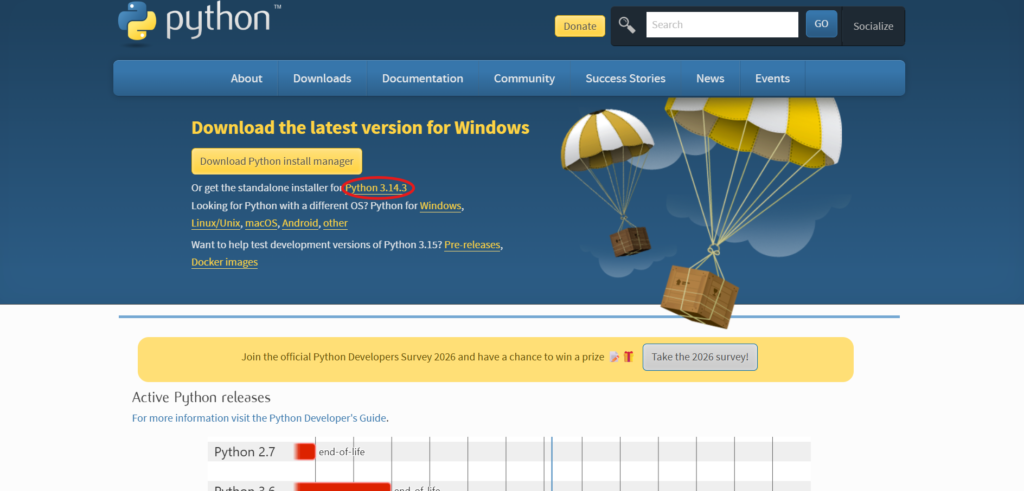
Go to python.org/downloads and download the latest stable version. At the time of writing this article, that’s 3.14.3.
Step 2 — How to install Python on Windows without errors
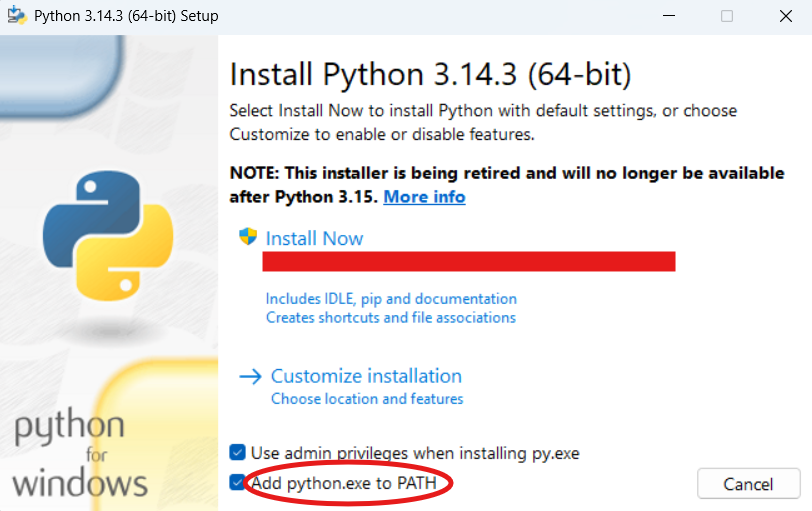
Here’s the detail nobody tells you: when the installer opens, before clicking “Install Now”, check the box that says “Add python.exe to PATH”. If you skip this, Python won’t work from the terminal. It’s the most common beginner mistake.
Then click Install Now and wait.
Step 3 — Check it works
Open the Windows search bar, type cmd and open the terminal. Type the following and press Enter:
python --version
If you get a response like Python 3.14.3 it’s installed correctly. If you get an error, you most likely forgot to check the PATH option in the previous step, in that case, uninstall and repeat.
Step 4 — “Hello, world!” Your first program
In the terminal type python and press Enter. Now type this:
print("Hello, world!")
Press Enter. You should see:
```
Hello, world!
```
Congratulations! That’s your first Python program. Simple as that.
What’s next?
Now that you know how to install Python on Windows, the next step is to get a decent code editor. I recommend VS Code; it’s free and very powerful. In the next article I’ll show you how to install and set it up for Python.
Keep goingAll Tools articlesDid this article help you? Here is how you can support SergioLearns →


3 Comments