
Python debugging — theory with the bill for table 3, tracebacks, snitch prints and pdb (and the 9.10 € nobody owed)
One afternoon studying in the university café, three of us ordered three coffees, two sandwiches and a juice, and I was in charge of splitting the bill. Having just seen operators in FP1, I did it with Python on my phone, very proud of myself:
# The bill for table 3: three friends split everything equally
coffees = 3 * 1.20        # 3 coffees
sandwiches = 2 * 2.50     # 2 sandwiches
juice = 1.50              # 1 juice
friends = 3
per_person = coffees + sandwiches + juice / friends
print("Each person pays:", round(per_person, 2), "€")
Output:
Each person pays: 9.1 €
I asked each of them for 9.10 €. One paid without looking; the second started adding up out loud: “three coffees at 1.20, two sandwiches at 2.50 and a juice… that’s 10.10 in total, and you’re charging us 27.30?”. Python hadn’t given any error. The program did exactly what I wrote; what I wrote wasn’t what I meant. That’s the most dangerous error of all, the one that doesn’t warn you, and finding it takes debugging.
Python debugging is one of the most important skills in first year, and almost nobody teaches it directly: you know how to write code, but when something goes wrong (and it always does) you don’t know where to start. Today you learn the three types of errors and when each one appears, how to read a traceback from the bottom up, how to add snitch prints (with an f-string trick you’re going to love) and how to use the debuggers we have in FP1: Thonny, Python Tutor, the VS Code one and pdb, the terminal one. You’re coming from Python operators, where table 3’s bug comes from, and next come Python conditionals, where all of this becomes essential.
Table of Contents
What is debugging?
Debugging is looking for the cause of a fault in a program and fixing it. A bug is anything that makes the program behave differently from what you expect: stopping with an error, hanging, or giving a wrong result without saying anything.
How do you know there’s a bug? By testing the program with data whose correct result you already know. That’s called a test case: three coffees, two sandwiches and a juice split between three must come to 3.37 € per person (10.10 / 3). If the program says something else, there’s a fault, even with no error message at all.
Every debugging tool, however different they look, is built on three functions:
- Step-by-step execution: the program runs one line and stops, waiting for you to tell it to continue.
- Variable inspection: while it’s stopped, you can see the value of each variable to check whether it’s what you expected.
- Breakpoints: you mark a line and the program runs normally until it reaches it, without making you go line by line from the start.
Before the tools, the first thing is recognising what type of error you’re facing, because each one appears at a different moment:
Syntax errors (SyntaxError)
The code is badly written and Python doesn’t even start running it: it detects it while reading the file. That’s why, if there’s a syntax error on line 50, not even the 49 before it run.
total = 3 * 1.20
print("Total:", total      # the bracket is never closed
print("Thank you")
Output:
  File "syntax.py", line 2
    print("Total:", total      # the bracket is never closed
         ^
SyntaxError: '(' was never closed
Notice two things. First, nothing runs: not even line 1 (total = 3 * 1.20), which is why no “Total” appears. Second, the message points at line 2, where the bracket that was never closed was opened, even though Python only noticed while reading line 3. In older versions of Python the error appeared on the line after the fault; if a message ever points at a line that looks fine, look at the one above.
Its close cousin is the indentation error:
price = 1.20
  amount = 3             # two extra spaces at the start
  File "indentation.py", line 2
    amount = 3             # two extra spaces at the start
IndentationError: unexpected indent
unexpected indent: there’s indentation where there shouldn’t be. In Python indentation isn’t decoration, it’s part of the syntax (it says which lines belong to an if, a loop or a function).
Syntax errors are the easiest to fix: the message gives the line and the ^ points almost at the character. The most common in FP1: a missing colon at the end of if, for, while or def, unclosed brackets or quotes and mixed indentation.
Type errors (TypeError, ValueError)
The code is well written, Python starts running it and, when it reaches a particular line, finds something it can’t do. It stops on that line and tells you what happened. These are called runtime errors or exceptions. The two you’ll see most have to do with types:
amount = "3"             # it arrives as text, just like with input()
total = amount * 1.20
Traceback (most recent call last):
  File "wrong_type.py", line 2, in <module>
    total = amount * 1.20
            ~~~~~~~^~~~~~
TypeError: can't multiply sequence by non-int of type 'float'
The amount arrived as the text "3" (just as everything input() reads does). Multiplying a text by an integer is allowed (it repeats the text), but not by a decimal: can't multiply sequence by non-int of type 'float'. The fix is to convert first: int(amount) * 1.20.
coffees = 3
print("Coffees: " + coffees)
Traceback (most recent call last):
  File "concatenate.py", line 2, in <module>
    print("Coffees: " + coffees)
          ~~~~~~~~~~~~^~~~~~~~~
TypeError: can only concatenate str (not "int") to str
Here it’s the other way round: you try to join (concatenate) a text and a number. + joins texts and adds numbers, but it can’t mix them. Fixes: "Coffees: " + str(coffees), print("Coffees:", coffees) or an f-string, f"Coffees: {coffees}".
amount = int("three")
Traceback (most recent call last):
  File "value.py", line 1, in <module>
    amount = int("three")
ValueError: invalid literal for int() with base 10: 'three'
ValueError is a different complaint: the type of the data is right (int() accepts texts), but the value can’t be converted. int("3") works; int("three") doesn’t. When a user types something odd into an input(), this is the error you’ll see.
In Python 3.11 and later, tracebacks underline with ~~~^~~~ the exact operation that failed within the line. If your Python is older, you’ll see the same message without underlining.
Silent errors
The most dangerous: the program finishes without any error and the result is wrong. Python doesn’t warn you because, for it, nothing is odd: it did what you wrote. That’s table 3’s case.
What happened? Operators have precedence: division / is done before addition +, just as in maths. So coffees + sandwiches + juice / friends doesn’t split the bill: it divides only the juice by three and adds the rest in full.
In numbers: 3.6 + 5.0 + 1.5 / 3 = 3.6 + 5.0 + 0.5 = 9.1. What I wanted was (3.6 + 5.0 + 1.5) / 3 = 10.1 / 3 = 3.37. Some brackets were missing, and no message told me. For these errors there’s no traceback to read: you have to check the results with a test case you can do by hand and, when it doesn’t add up, look at the intermediate values. That’s where the tools come in.
Accepting a result because the program “didn’t give an error”. No error only means Python could do the operations, not that they’re the ones you wanted.
How to read a traceback
When a program stops with an error, Python writes a traceback: the report of what it was doing when it failed. It’s a bit scary at first, but it always has the same shape. Look at this one:
quantity_txt = "3"            # the data arrives as text (as with input())
price = 1.20
subtotal = quantity_txt * 2   # no error: "3" * 2 is "33"
total = subtotal * price      # it fails here... but the cause is two lines higher
print(total)
Output:
Traceback (most recent call last):
  File "traceback.py", line 4, in <module>
    total = subtotal * price     # it fails here... but the cause is two lines higher
TypeError: can't multiply sequence by non-int of type 'float'
You read it from the bottom up:
- The last line says WHAT happened: the error type (
TypeError) and a message. Read it in full before anything else; it often already tells you the fix. - The
Fileline says WHERE: the file (traceback.py) and the line number (4). - Below
Filecomes the line that failed, copied from the code, so you don’t have to look for it. - The first line,
Traceback (most recent call last):, just announces the report: “most recent at the end”.
And now the important bit: line 4 is where it blew up, but not where the cause is. The problem started on line 3: quantity_txt * 2 gave no error because multiplying a text by an integer repeats the text, and subtotal ended up as "33". Line 4 was just the first one that couldn’t cope with that text. When the traceback’s line looks correct, ask yourself: where does each value used here come from? and go up.
Once you learn functions, tracebacks will have several File blocks, one for each function that was waiting for another. You read them the same way: the last line says what, the last File says where it blew up and the ones above tell you how you got there. You’ll see it in the Python functions theory.
Snitch prints (and the = trick)
The simplest tool and the first one you should use: adding temporary print() calls that “snitch” the value of variables at key points. F-strings have a trick designed exactly for this: if you write {variable=}, they print the name and the value.
coffees = 3 * 1.20
sandwiches = 2 * 2.50
juice = 1.50
friends = 3
print(f"{coffees=} {sandwiches=} {juice=}")               # snitch 1: is the data what I think?
per_person = coffees + sandwiches + juice / friends
print(f"{per_person=}")                                   # snitch 2: and the result?
print(f"{juice / friends=}")                              # snitch 3: what is being divided?
per_person = (coffees + sandwiches + juice) / friends     # the fix: brackets
print("Each person pays:", round(per_person, 2), "€")
Output:
coffees=3.5999999999999996 sandwiches=5.0 juice=1.5
per_person=9.1
juice / friends=0.5
Each person pays: 3.37 €
Each snitch answers a question:
- Is the data what I think? Yes: coffees, sandwiches and juice are fine. (That
3.5999999999999996isn’t the bug: it’s the normal imprecision of decimals in binary, which you saw in variables and data types. That’s why we round at the end.) - Is the result what I expect? No: 9.1, when by hand it’s 3.37.
- What is being divided?
juice / friends=0.5: only the juice. Found it.
With the brackets fix it comes out at 3.37 €. (If you charge 3.37 € each, you collect 10.11 €: the extra cent is the rounding of splitting 10.10 three ways, not a bug.)
Leaving the snitch prints in the code you hand in. Remove them when you finish, or better: once the program grows, use a debugger, which doesn’t clutter the code.
Tool 1 — Thonny
Thonny is a Python editor designed for beginners, and its debugger is the most visual of all. It’s a free download from thonny.org. To debug, instead of the normal run button press the bug one (Debug current script):
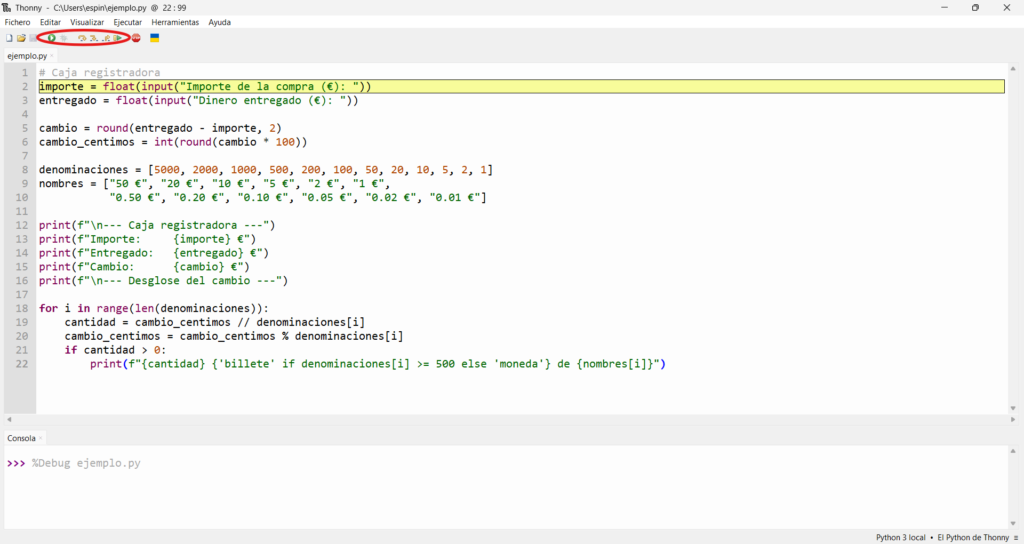
The line about to run is highlighted, and the toolbar shows the controls:
- Step over (F6): runs the whole current line and stops on the next one.
- Step into (F7): if the line calls a function, it goes inside and stops on its first line.
- Step out: finishes the function you’re in and stops on the way back.
- Resume: carries on without stopping until the next breakpoint (or the end).
To set a breakpoint, click on the line number: a red dot appears. The most useful thing in Thonny is the Variables panel (View → Variables), which shows the name and value of every variable as the program advances:
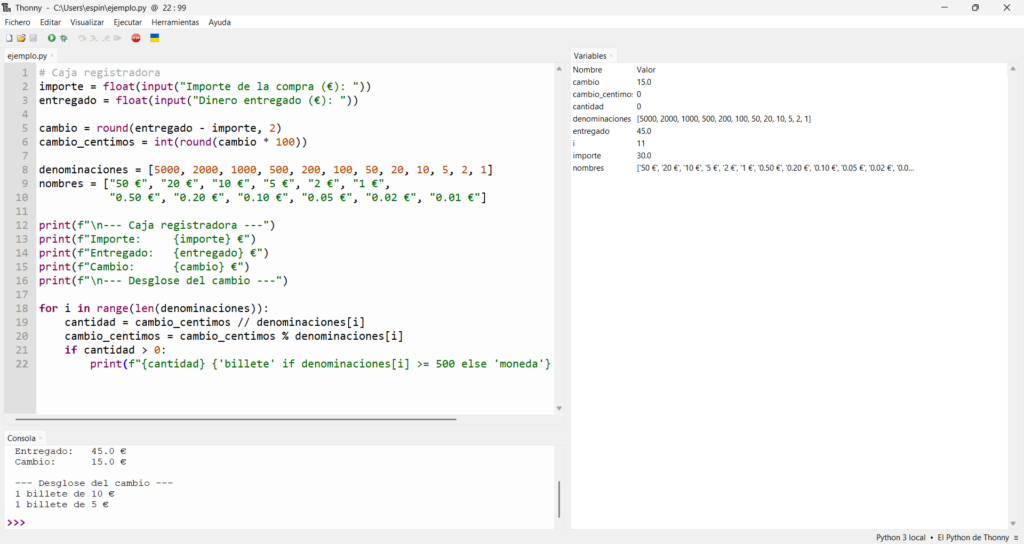
With table 3’s program, stepping with Step over, you’d see coffees, sandwiches, juice and friends appear with their values and, after the calculation line, per_person with a 9.1 that doesn’t add up.
Under View → Heap Thonny also shows the memory where the data lives, and the Variables panel then shows addresses instead of values. To start with, keep the Heap closed.
Tool 2 — Python Tutor
Python Tutor is a website that runs your code step by step and draws the variables. Nothing to install: you paste the code, choose Python 3 and click Visualize Execution.
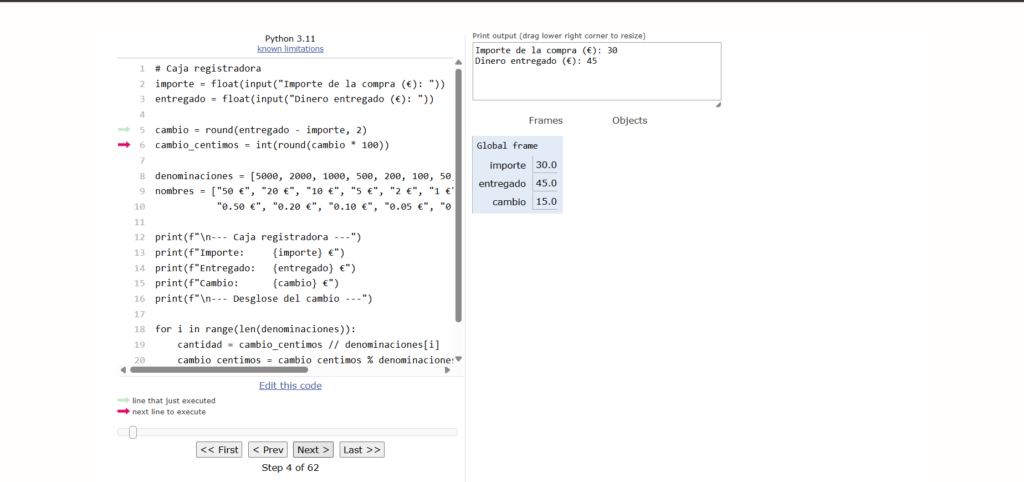
On the left is the code with two arrows: the grey one marks the line just run and the red one, the next. Below, the First, Prev, Next and Last buttons (and a slider), so you can go backwards, something normal debuggers don’t do. On the right, at the top, the program’s output and, below, every variable with its value.
It’s perfect for short programs and silent errors: you step forward, look at each value and see the step where the sum goes wrong. It has limits: the program must fit in a single file and can’t be very long. You can set breakpoints by clicking on a line. At the end of this article there’s a program ready for you to try it.
If your program uses input(), Python Tutor will ask you for the data in a box under the buttons. To debug faster, swap the input() calls for fixed values while you look for the fault.
Tool 3 — The VS Code debugger
If you program in Visual Studio Code with the Python extension, you already have a very complete debugger. Click to the left of the line number where you want to stop: a red dot appears, the breakpoint.
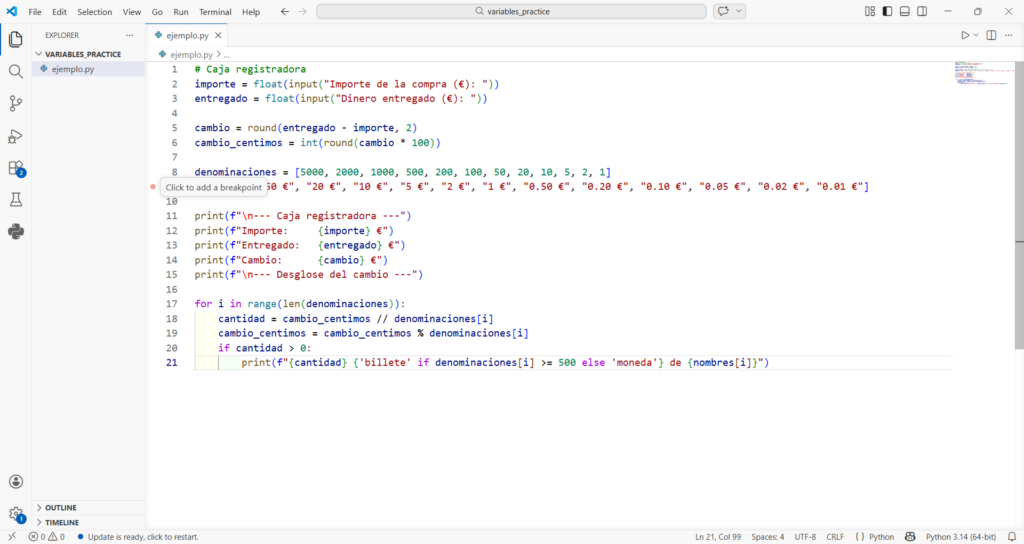
Then press F5 (or Run → Start Debugging) and, if it asks, choose to debug the current Python file. The program runs up to the breakpoint and stops before running that line. In the left-hand panel you have:
- Variables: every active variable with its value at that moment.
- Watch: expressions you write that are recalculated at each step. With
juice / friendsyou’d have seen the 0.5 instantly. - Call Stack: which function you’re in and where it was called from. Very useful once you reach functions.
The controls on the bar that appears at the top:
| Key | Action | What it does |
|---|---|---|
| F5 | Continue | carries on to the next breakpoint |
| F10 | Step Over | runs the whole line |
| F11 | Step Into | goes into the function on that line |
| Shift + F11 | Step Out | finishes the current function and returns |
| Shift + F5 | Stop | stops debugging |
Instead of a normal breakpoint, right-click the red dot and choose Edit Breakpoint → Expression: the program will only stop when the condition is true (for example, friends == 0). With long loops it’s gold.
Tool 4 — pdb, the terminal debugger
The FP1 notes also teach pdb (Python debugger), which comes with Python and works in any terminal, no editor needed. The easiest way to use it is to write breakpoint() on the line where you want to stop:
coffees = 3 * 1.20
sandwiches = 2 * 2.50
juice = 1.50
friends = 3
breakpoint()                                       # the program stops here and opens pdb
per_person = coffees + sandwiches + juice / friends
print("Each person pays:", round(per_person, 2), "€")
When you run it, the program stops and the (Pdb) prompt appears, waiting for commands. This is the real session, with the commands I typed:
> ticket_pdb.py(5)<module>()
-> breakpoint()                                       # the program stops here and opens pdb
(Pdb) p coffees, sandwiches, juice
(3.5999999999999996, 5.0, 1.5)
(Pdb) n
> ticket_pdb.py(6)<module>()
-> per_person = coffees + sandwiches + juice / friends
(Pdb) n
> ticket_pdb.py(7)<module>()
-> print("Each person pays:", round(per_person, 2), "€")
(Pdb) p per_person
9.1
(Pdb) p juice / friends
0.5
(Pdb) c
Each person pays: 9.1 €
What each command in the session does:
| Command | What it does | In the session |
|---|---|---|
p expression | prints the value of a variable or expression | p coffees, sandwiches, juice shows the three values |
n (next) | runs the current line and stops on the next | two n move on to the print line |
p per_person | — | 9.1: the fault |
p juice / friends | — | 0.5: the cause |
c (continue) | carries on to the end or the next breakpoint | the program finishes and prints |
Lines starting with > say where it’s stopped (file, line and <module>, which means “the main program”) and lines starting with -> show the line about to run. Other useful commands: l (list) shows the code around, s (step) goes into a function, b 7 sets a breakpoint on line 7 and q quits.
Since Python 3.13, breakpoint() stops on its own line (that’s why the session starts at line 5 and two n are needed); in earlier versions it stopped on the next one. In the notes you’ll see the old form, import pdb and pdb.set_trace(), which does the same.
My debugging workflow in practice
After a whole year fighting errors, this is the order I follow:
- I read the whole error, bottom up. The last line says what happened and
Filesays where. I don’t search Google before reading it. - I make a test case I can solve by hand. If I don’t know what the result should be, I can’t know it’s wrong. For table 3: 10.10 / 3 = 3.37.
- I add snitch prints with
{variable=}at the key points to see where the value goes wrong. That solves most first-year errors. - If I can’t find it, step by step. Python Tutor or Thonny for short programs; the VS Code debugger (or
pdb) for long ones, with breakpoints where I suspect. - If the message means nothing to me, I search for it. I copy the last line of the traceback (without my variable names) and search. Almost every first-year error has been had by someone before.
When you fix an error, rerun all your test cases, not just the one that failed. A fix can break something else.
Most common error messages in FP1
All these messages are from Python 3.13 and, except the colon one, come straight from the programs in this article. Keep the table:
| Message | What it means | How to fix it |
|---|---|---|
SyntaxError: '(' was never closed | a bracket opened and never closed | close it (and check the line above too) |
SyntaxError: expected ':' | missing colon after if, for, while or def | add : at the end of the line |
IndentationError: unexpected indent | indentation where it doesn’t belong | line it up with the rest of its block |
TypeError: can only concatenate str (not "int") to str | + between text and number | str(number) or an f-string |
TypeError: can't multiply sequence by non-int of type 'float' | you multiply a text by a decimal | convert the text with int() or float() |
ValueError: invalid literal for int() with base 10: 'three' | the text isn’t a number | check what arrives before converting |
NameError: name 'coffee_pricee' is not defined. Did you mean: 'coffee_price'? | a variable that doesn’t exist (almost always a typo) | fix the name: Python suggests the right one |
ZeroDivisionError: float division by zero | you divide by 0 | check the divisor before dividing |
The last three, with their programs:
coffee_price = 1.20
total = 3 * coffee_pricee
Traceback (most recent call last):
  File "name.py", line 2, in <module>
    total = 3 * coffee_pricee
                ^^^^^^^^^^^^^
NameError: name 'coffee_pricee' is not defined. Did you mean: 'coffee_price'?
total = 10.10
friends = 0
print(total / friends)
Traceback (most recent call last):
  File "zero.py", line 3, in <module>
    print(total / friends)
          ~~~~~~^~~~~~~~~
ZeroDivisionError: float division by zero
Notice the Did you mean: 'coffee_price'?: since Python 3.10, if you misspell a variable name, Python looks for the most similar one and suggests it.
Visualise it with Python Tutor
To finish, let’s catch table 3’s bug with Python Tutor. Choose Python 3, paste this program (the bill split into steps) and step through with Next:
coffees = 3 * 1.20
sandwiches = 2 * 2.50
juice = 1.50
friends = 3
juice_share = juice / friends
wrong = coffees + sandwiches + juice_share
right = (coffees + sandwiches + juice) / friends
print("wrong:", round(wrong, 2))
print("right:", round(right, 2))
What should come out at the end:
wrong: 9.1
right: 3.37
What to watch step by step:
- After the first line,
coffeesappears in the Global frame as3.5999999999999996. That’s not the bug: it’s decimal imprecision, and theroundat the end hides it. - On the
juice_shareline, notice it’s0.5: that’s the division Python did on its own in the opening version, without asking you. - Compare
wrong(9.1, with 0.5 of juice) andright(3.3666…, with everything divided). The difference is in plain sight, variable by variable. - Use Prev to go back and notice that, up to the
wrongline, every value was correct: the fault is in a single operation. That’s debugging: finding the first step where a value stops being what you expected.
Summary — when to use each tool
| Situation | Tool |
|---|---|
SyntaxError or IndentationError | read the message: line and ^; if the line looks fine, check the one above |
Runtime error (TypeError, ValueError, NameError…) | read the traceback bottom up and ask where each value comes from |
| Silent error in a short program | test case + snitch prints with {variable=} or Python Tutor |
| Silent error in a long program | VS Code debugger with breakpoints (or conditional ones) |
| No editor, just a terminal | breakpoint() and pdb (p, n, s, c, q) |
| Understanding how something new runs | Thonny or Python Tutor step by step, even with no error |
Three ideas to take away:
- A program with no errors isn’t a correct program: check it with a test case you can do by hand.
- A traceback is read bottom up, and the cause may be a few lines before where it blew up.
- Debugging is finding the first value that isn’t what you expected: snitch prints or step by step, but looking at values, not guessing.
In the next topic, Python conditionals, your programs will start making decisions, and silent errors will hide in the branch you didn’t expect. Everything you’ve seen today will come in handy.
Keep goingAll Python articlesDid this article help you? Here is how you can support SergioLearns →

 The hardware that holds up the operating system — theory with my IC2 assignment on the printer, an interrupt that stops everything and a cache that hits (and the infinite loop that didn’t freeze my laptop)