Cómo instalar Python en Windows y hacer tu primer programa
Cuando empecé el Grado en Ciencias e Ingeniería de Datos en la ULPGC, la primera asignatura que me puso delante de un ordenador fue Fundamentos de Programación I (FP1). Durante mi primer año en la carrera, nunca tuve que instalar Python en Windows. Era la propia universidad quien nos facilitaba un entorno online llamado Aulaga donde programábamos directamente desde el navegador usando VPL. Pero cuando quieres practicar por tu cuenta, fuera del campus virtual, deberías tenerlo en tu ordenador para no depender de tener conexión a Internet. Parece fácil, pero hay pequeños detalles que nadie te avisa y que pueden darte problemas.
En este artículo te cuento exactamente cómo hacerlo en Windows, paso a paso, como me lo hubiera gustado encontrar a mí.
Tabla de Contenidos
¿Qué es Python y por qué lo usamos?
Python es un lenguaje de programación de alto nivel. Básicamente es una forma diseñada específicamente para darle instrucciones a tu ordenador usando lenguaje natural. Se usa muchísimo en ciencia de datos, estadística, inteligencia artificial y automatización gracias a su versatilidad y cómoda sintaxis. En la carrera lo verás en casi todas las asignaturas, así que instalar Python en Windows bien desde el principio vale la pena.
Paso 1 — Descargar Python para Windows
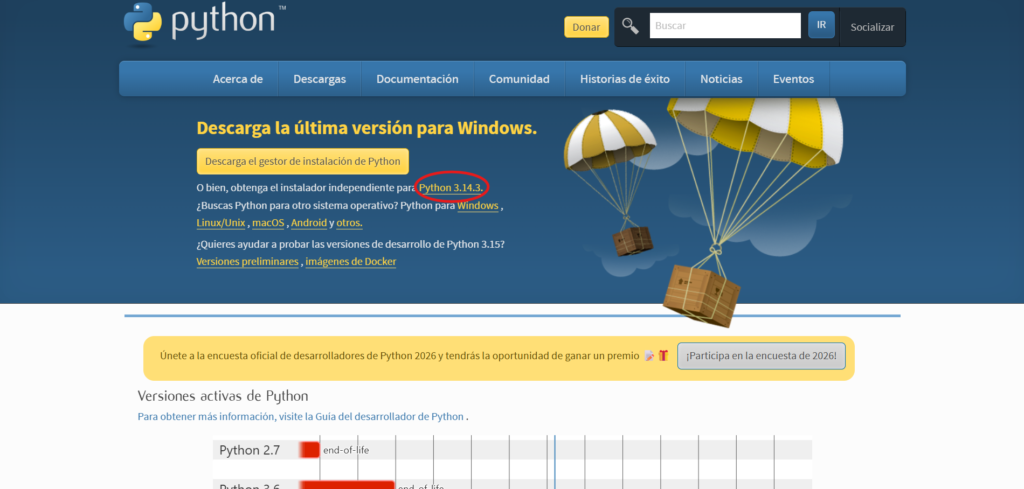
Ve a python.org/downloads y descarga la última versión estable. En el momento de escribir este artículo es la 3.14.3.
Paso 2 — Cómo instalar Python en Windows sin errores
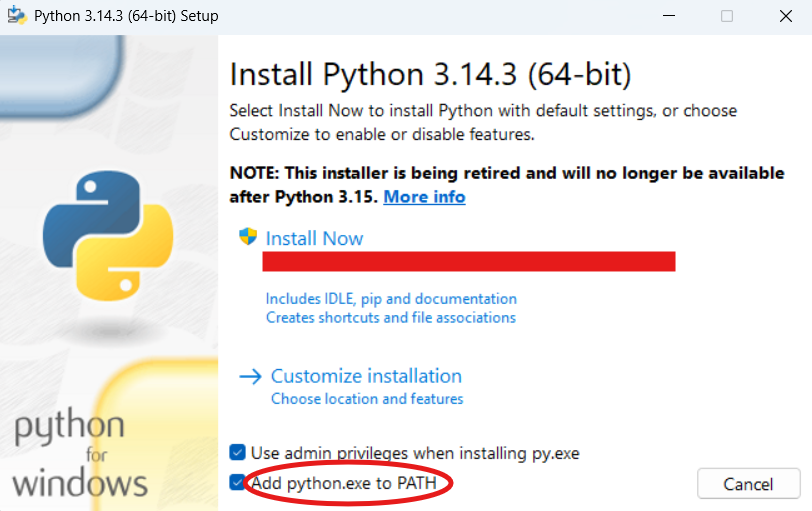
Aquí está el detalle que nadie te dice: cuando se abra el instalador, antes de pulsar «Install Now» marca la casilla que dice «Add python.exe to PATH». Si no la marcas, Python no funcionará desde la terminal. Es el error más común.
Luego dale a Install Now y espera.
Paso 3 — Comprobar que funciona
Abre el buscador de Windows, escribe cmd y abre la terminal. Escribe esto y pulsa Enter:
python --versionSi te responde algo como Python 3.14.3 es que está instalado correctamente. Si da error, casi seguro que olvidaste marcar el PATH del paso anterior, en dicho caso, desinstala y repite.
Paso 4 — «¡Hola, mundo!» Tu primer programa
En la terminal escribe python y pulsa Enter. Ahora escribe esto:
print("¡Hola, mundo!")Pulsa Enter. Deberías ver:
```
¡Hola, mundo!
```
¡Enhorabuena! Acabas de escribir tu primer programa en Python. Sí, así de simple.
¿Y ahora qué?
Una vez has aprendido a instalar Python en Windows, el siguiente paso es conseguir un editor de código decente. Recomiendo usar VS Code, que es gratuito y muy potente. En el próximo artículo te explico cómo instalarlo y configurarlo para Python.
How to install Python on Windows and write your first program
When I started my Data Science and Engineering degree at ULPGC, the first programming subject I took was Fundamentals of Programming I (FP1). During my first year, I never actually had to install Python on Windows. The university provided an online environment called Aulaga where we coded directly from the browser using VPL. But when you want to practice on your own, outside the virtual campus, you really should have it on your computer so you don’t depend on having an internet connection. It sounds simple, but there are small details nobody warns you about that can cause problems.
In this article I’ll walk you through exactly how to do it on Windows, step by step as the guide I wish I’d found myself.
What is Python and why do we use it?
Python is a high-level programming language designed specifically to give instructions to your computer using natural language. It’s widely used in data science, statistics, artificial intelligence and automation, thanks to its versatility and clean syntax. You’ll see it in almost every subject throughout the degree, so getting Python installed on Windows properly from the start is worth it.
Step 1 — Download Python for Windows
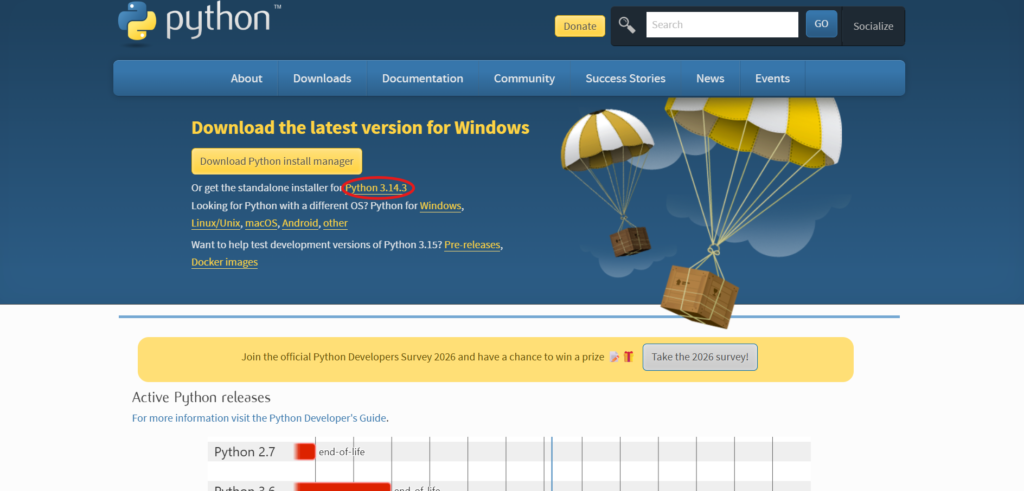
Go to python.org/downloads and download the latest stable version. At the time of writing this article, that’s 3.14.3.
Step 2 — How to install Python on Windows without errors
Here’s the detail nobody tells you: when the installer opens, before clicking «Install Now», check the box that says «Add python.exe to PATH». If you skip this, Python won’t work from the terminal. It’s the most common beginner mistake.
Then click Install Now and wait.
Step 3 — Check it works
Open the Windows search bar, type cmd and open the terminal. Type the following and press Enter:
python --versionIf you get a response like Python 3.14.3 it’s installed correctly. If you get an error, you most likely forgot to check the PATH option in the previous step, in that case, uninstall and repeat.
Step 4 — «Hello, world!» Your first program
In the terminal type python and press Enter. Now type this:
print("Hello, world!")Press Enter. You should see:
```
Hello, world!
```
Congratulations! That’s your first Python program. Simple as that.
What’s next?
Now that you know how to install Python on Windows, the next step is to get a decent code editor. I recommend VS Code; it’s free and very powerful. In the next article I’ll show you how to install and set it up for Python.

3 comentarios